Sync calendars
without another login.
LocalCalSync copies events between calendars already set up in Apple Calendar on your Mac. No OAuth. No new account. Nothing for IT or SAML to block.
macOS may say the developer is unidentified on first launch - here's how to open it.
Third-party calendar tools keep getting blocked
SAML restrictions, MDM policy, and blanket bans on external OAuth integrations all add up to the same thing: the usual calendar-sync tools need a login your organization won't allow.
SAML blocks the login
Cloud sync tools need to authenticate directly with Exchange, Google, or Outlook. That's exactly what SAML-restricted environments are built to stop.
IT won't approve another app
Getting a new OAuth integration approved can take weeks, or simply isn't allowed at enterprise or government contractor organizations.
Both calendars are already on your Mac
If both accounts already show up in Apple Calendar, the sync doesn't need a new login at all. It can happen locally, through macOS itself.
What LocalCalSync actually does, step by step
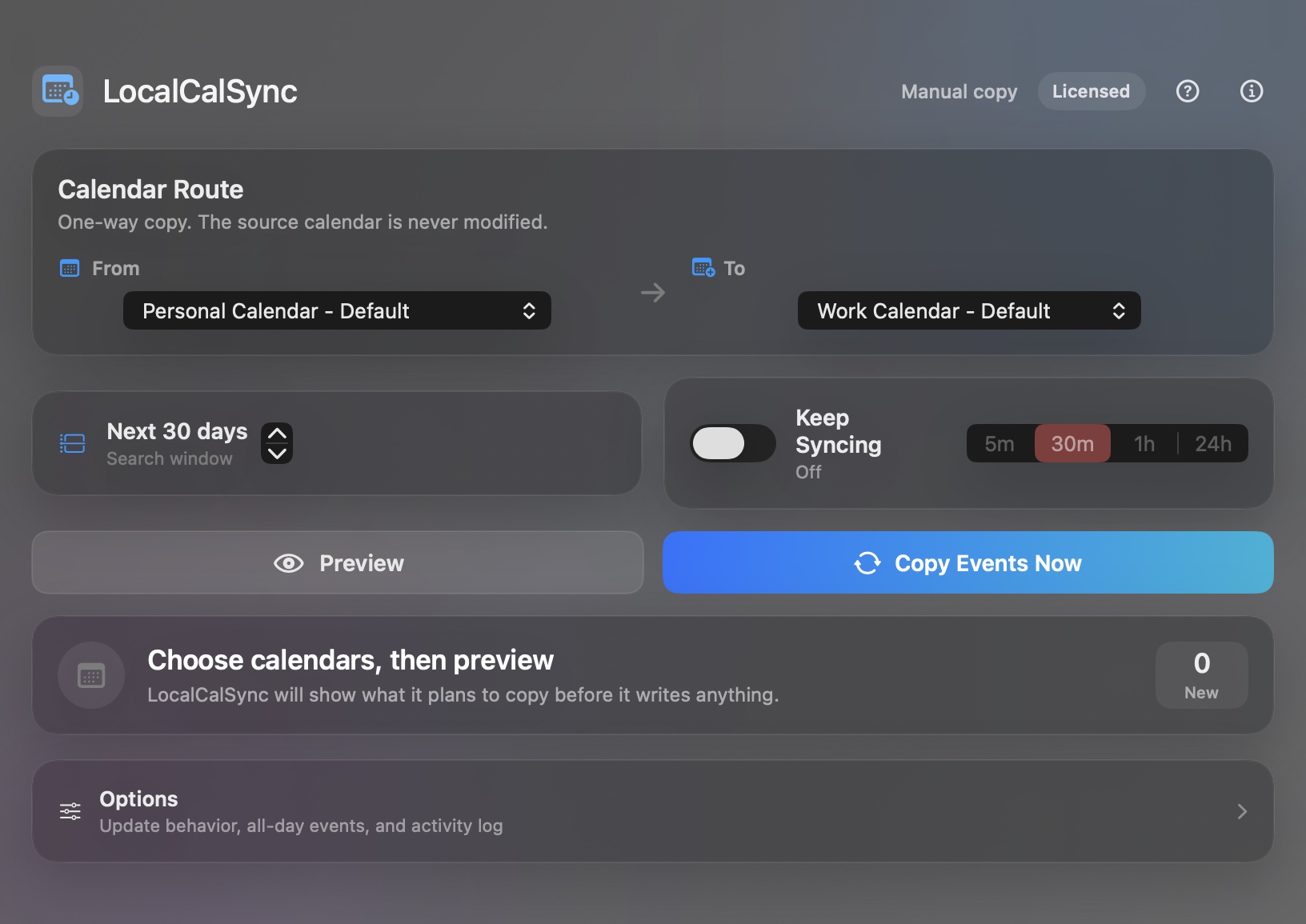
No proprietary sync engine, no OAuth handshake, no cloud relay in between. LocalCalSync reads and writes calendars through EventKit, the same framework Apple's own Calendar app is built on. If a calendar already shows up inside Calendar.app on your Mac, LocalCalSync can read from it or write to it. If it doesn't show up there, LocalCalSync can't see it either - there's no separate connection to Google, Microsoft, or Exchange happening anywhere.
Add both calendars to macOS first
Before opening LocalCalSync, add both accounts in System Settings (Internet Accounts, or however your organization provisions Exchange, Google Workspace, or iCloud) so both already appear as calendars inside Apple's Calendar app.
Grant Calendar access once
macOS asks for the standard Calendar permission the first time you launch the app. That's the only permission dialog you'll see - there's no account creation and no separate login screen for any calendar provider.
Pick a source and a destination
Choose which calendar to read from and which writable calendar to copy into. LocalCalSync only ever reads the source calendar; every event it creates is written to the destination you picked, never back to the source.
Preview, then copy (or keep syncing)
Preview lists exactly what would be created or updated, checked against a local record of what's already been synced, before anything is written. Copy Events Now applies it. Keep Syncing repeats that same check automatically every 5 minutes, 30 minutes, 1 hour, or 24 hours while the app stays open.
Built to be safe by default
Every design decision favors not surprising you.
Local-only, no OAuth
Only the standard macOS Calendar permission is requested. Nothing leaves your Mac.
Strictly one-way
The source calendar is never modified. Copies only ever flow toward the destination.
Preview before writing
See what would change before you commit to it, every single time.
Duplicate-safe
Local state tracking plus fallback matching means re-running never creates copies of copies.
Keep Syncing
Automatic re-sync every 5 minutes, 30 minutes, 1 hour, or 24 hours while the app is open.
Full activity log
Every sync run is logged in plain language, so you always know exactly what happened.
One price. Yours forever.
No subscription, ever.
- Try free for 14 days, no card required
- Lifetime license for this major version
- All bug fixes and minor updates included
- No account, no subscription, no tracking
Questions people actually ask
Does this connect to Google, Microsoft, or Exchange directly?
No. LocalCalSync only talks to macOS's built-in Calendar through EventKit, the same framework Apple's Calendar app uses. If your calendar already shows up in Apple Calendar, LocalCalSync can read from or write to it. It never asks for a separate login, and there's no OAuth screen for any calendar provider anywhere in the app.
What exactly happens when I click "Copy Events Now"?
For every event in the source calendar within your search window, LocalCalSync checks a small local record of what it's already synced. If an event has no matching record, it creates a new one in the destination calendar. If a match exists and "Update existing events" is turned on, it updates that event instead of creating a duplicate. It never touches events in the destination that it didn't create itself.
Will it modify or delete my original calendar?
No. LocalCalSync only ever reads from the source calendar. It creates or updates events in the destination calendar you chose. The source is never written to.
Will it create duplicates if I run it more than once?
No. LocalCalSync tracks which destination event corresponds to which source event, and falls back to matching by title and time if that record is ever missing.
Do I need to keep the app open for Keep Syncing to run?
Yes - Keep Syncing repeats on the interval you pick (5m/30m/1h/24h) while the app
window is open and your Mac is awake. It's not a background daemon. If you want syncing
on a schedule without the app open, LocalCalSync also ships an optional command-line
AppleScript (sync-calendars.applescript) with an example
launchd job you can install yourself to run it on a timer - that part is
for people comfortable with launchd, not required for normal use.
Is my calendar data sent anywhere?
No. Everything happens locally using macOS's EventKit framework. See the Privacy Policy for details.
Ready to stop fighting SAML for calendar access?
Free 14-day trial, instant download. $3.99 one-time to keep.
Download Free Trial